Twenty Four Hours

Twenty Four Hours

User Manual

App Information

App NameTwenty Four Hours
Version1.0.0
DevelopmentWillee Project
PlatformsAndroid, Windows

An analog clock app that shows 24 hours at a glance with schedule management.

Main Screen

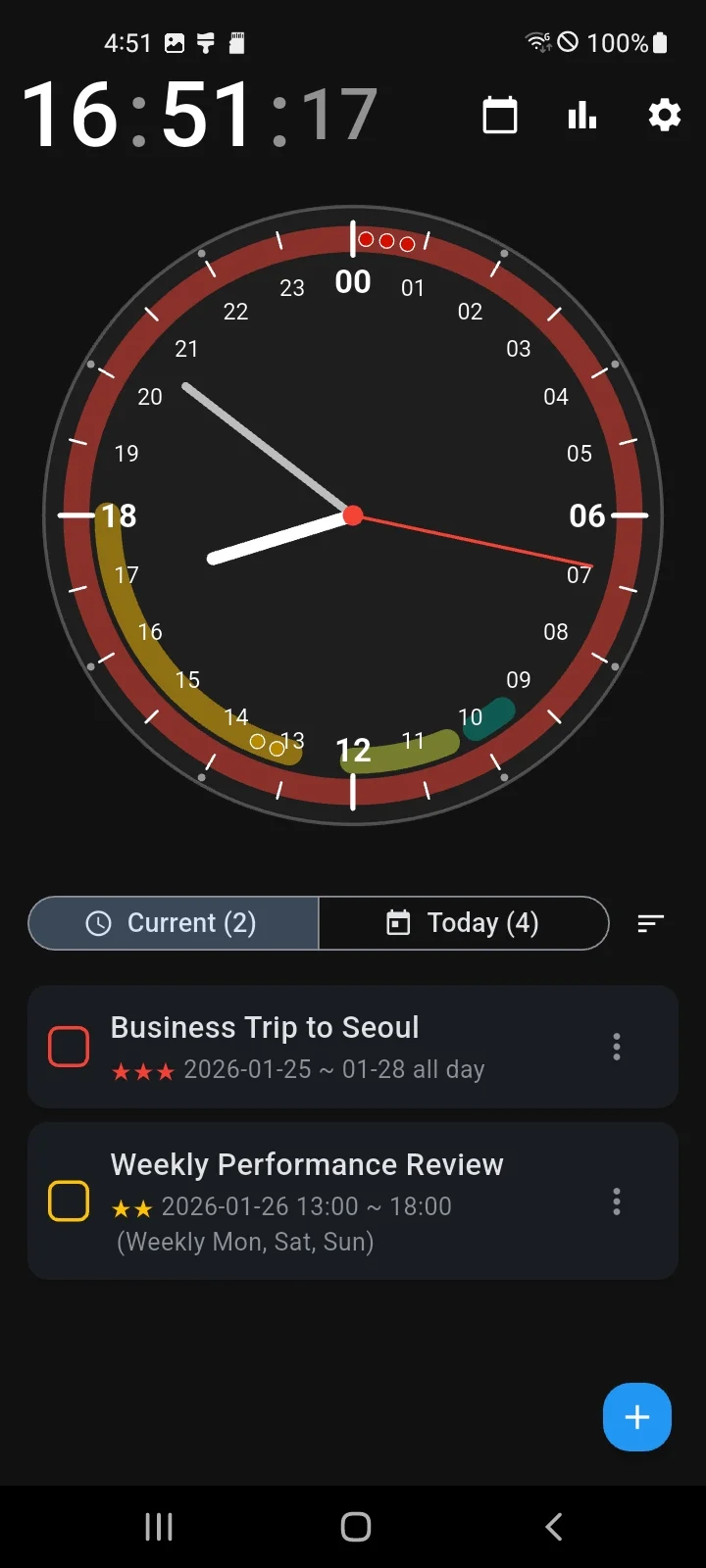
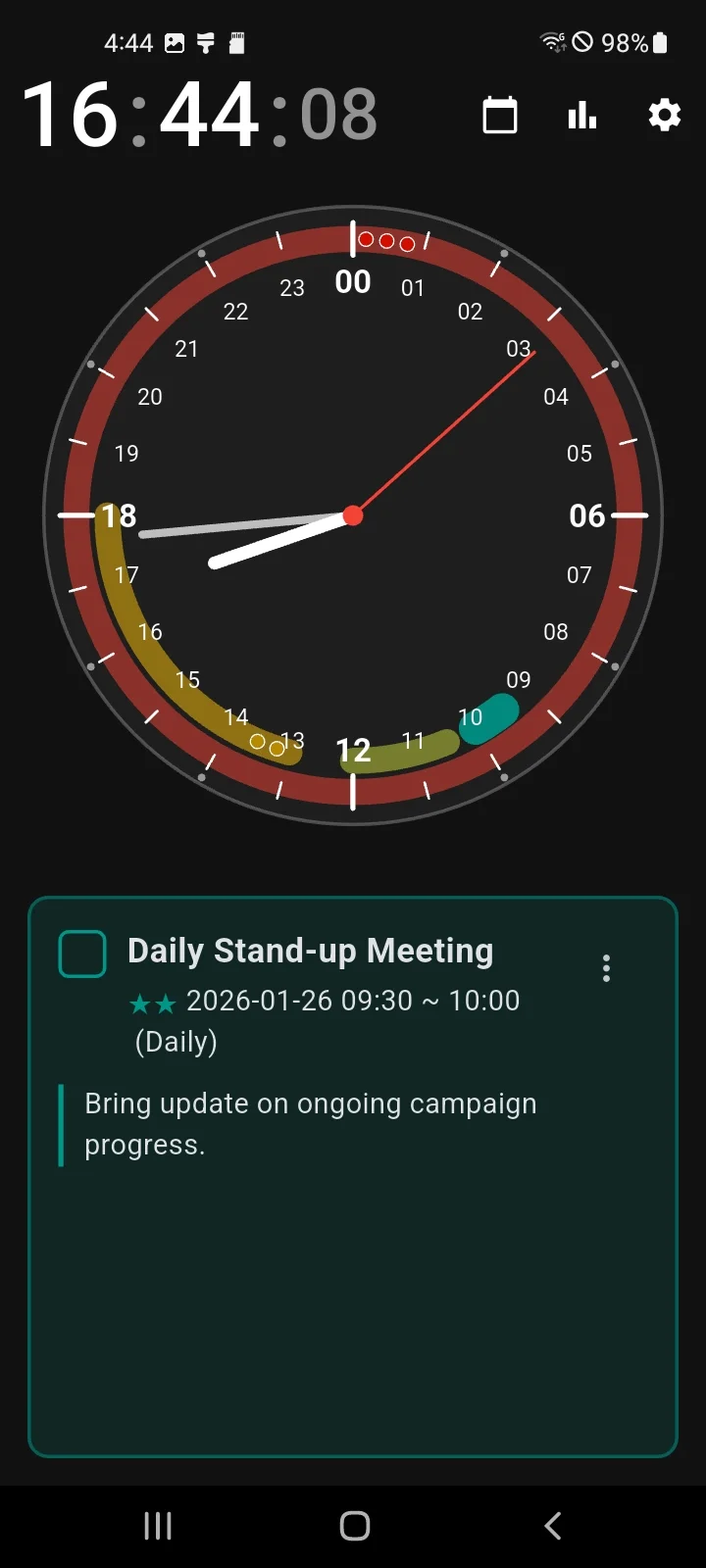
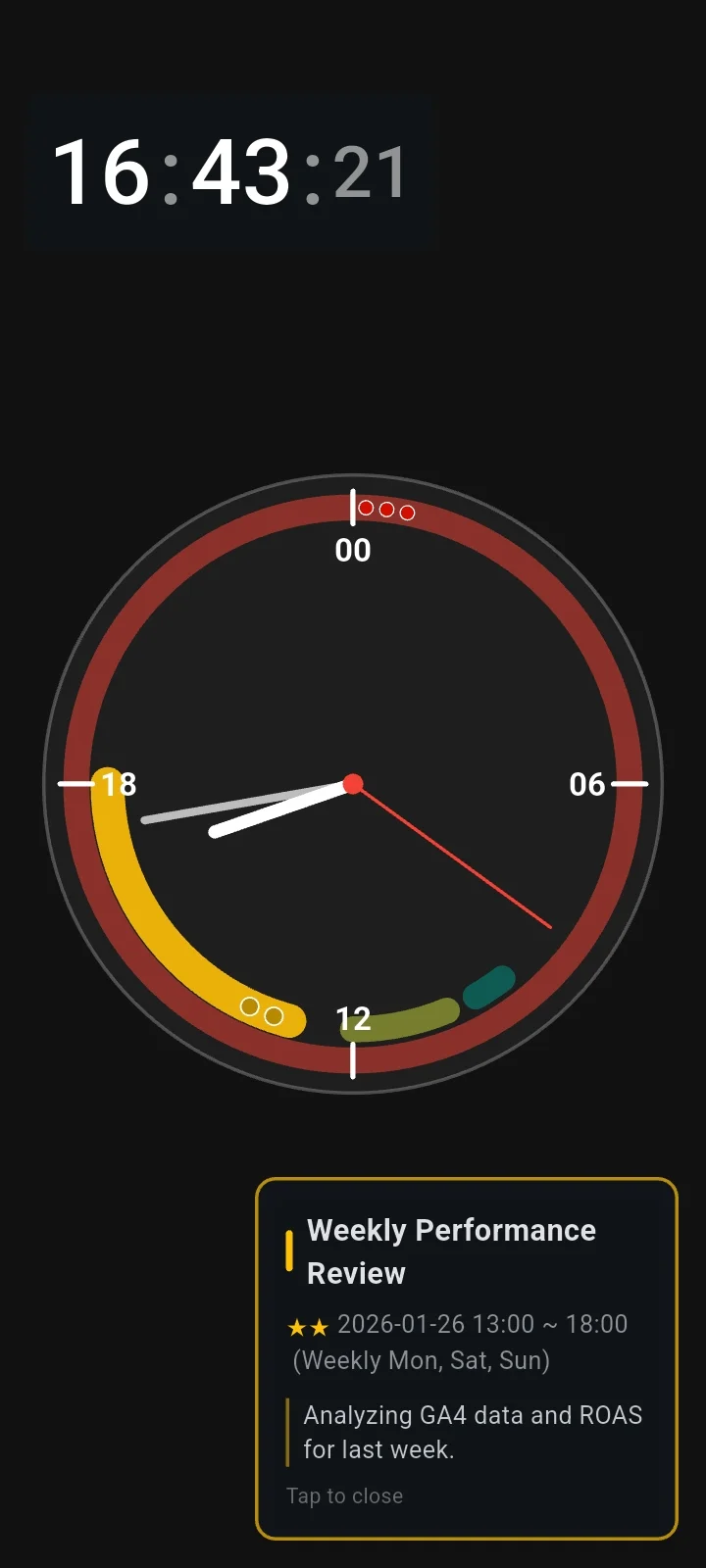
Analog Clock

Full-Screen Mode

Digital Clock

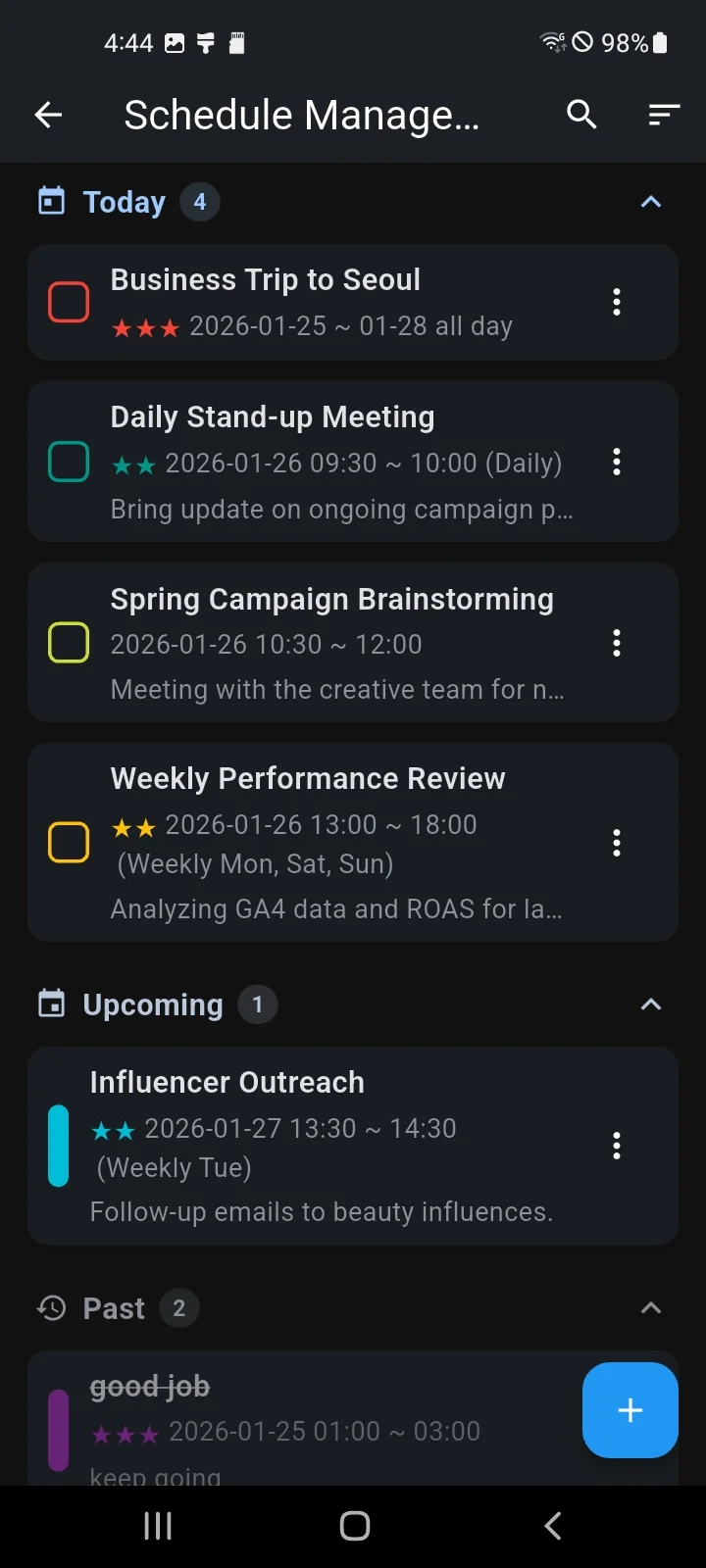
Schedule List Panel

Schedule Management

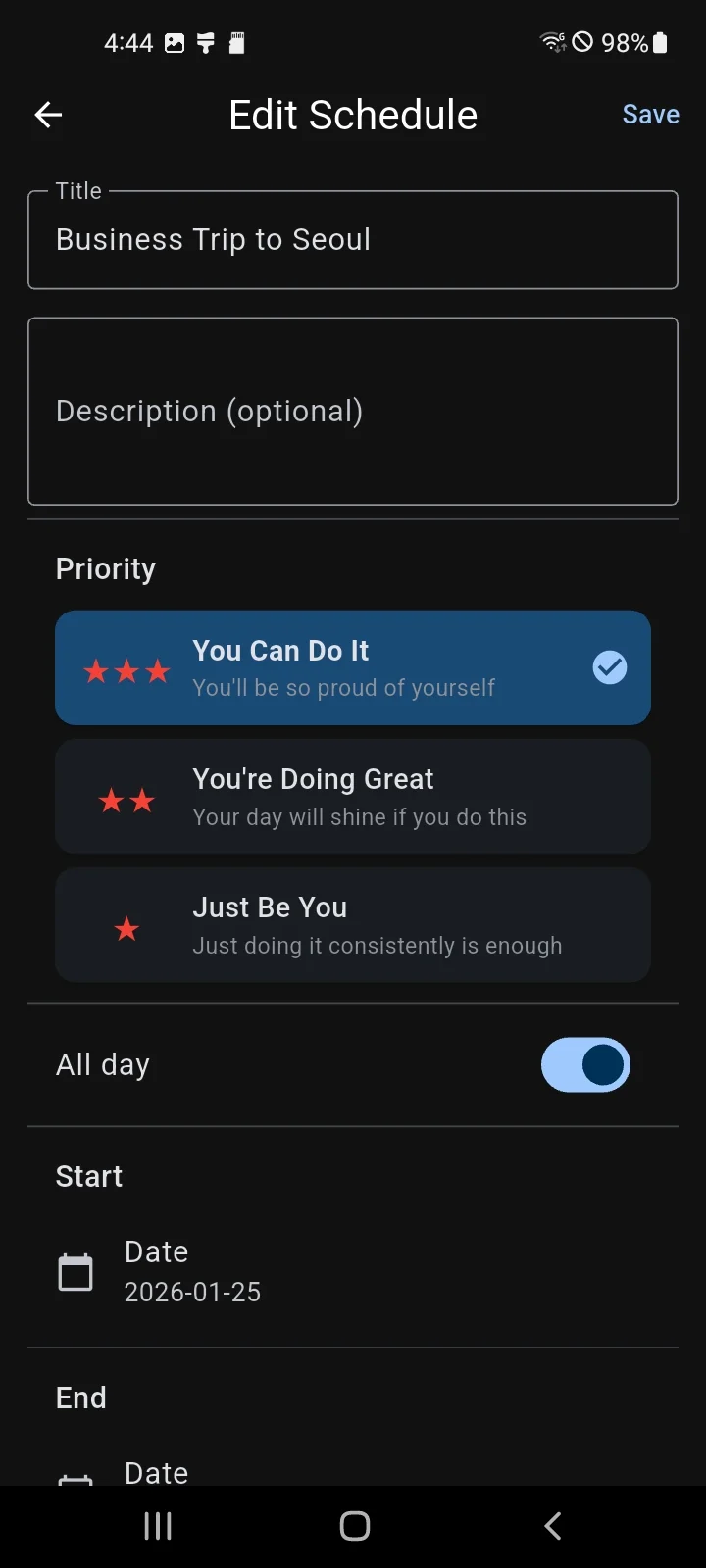
Creating a New Schedule

  1. Tap the ➕ button on the main screen or schedule list screen
  2. Enter a title (required, leading/trailing spaces are automatically removed)
  3. Enter description (optional)
  4. Set start/end date and time
  5. Set all-day, repeat, priority, and color as needed
  6. Tap Save

All-Day Events

Repeating Schedules

Priority Levels

Set importance in 3 levels:

Completion Tracking

Completion Records

Copy Schedule

Statistics

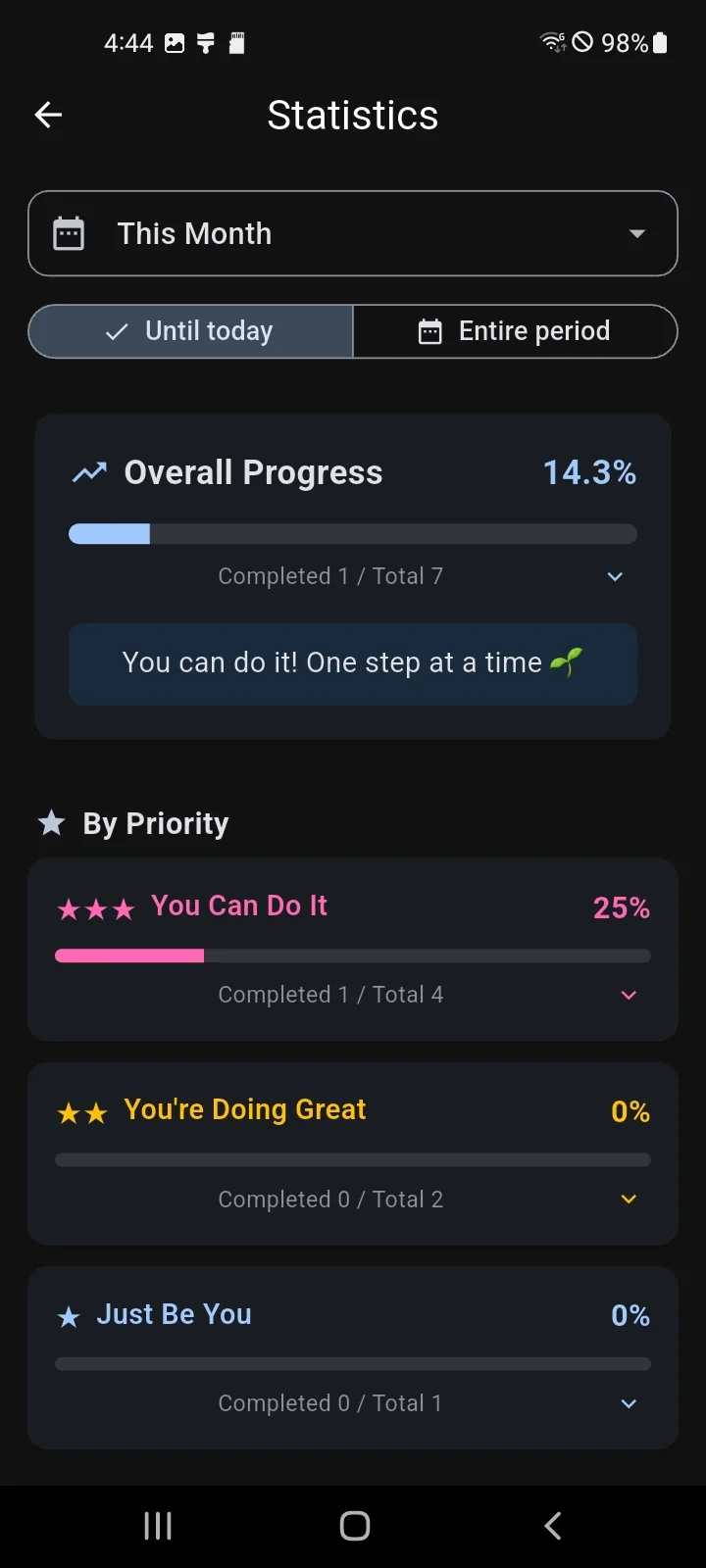
View your schedule completion rates in the Statistics screen.

Period Selection

Calculation Scope

Statistics Info

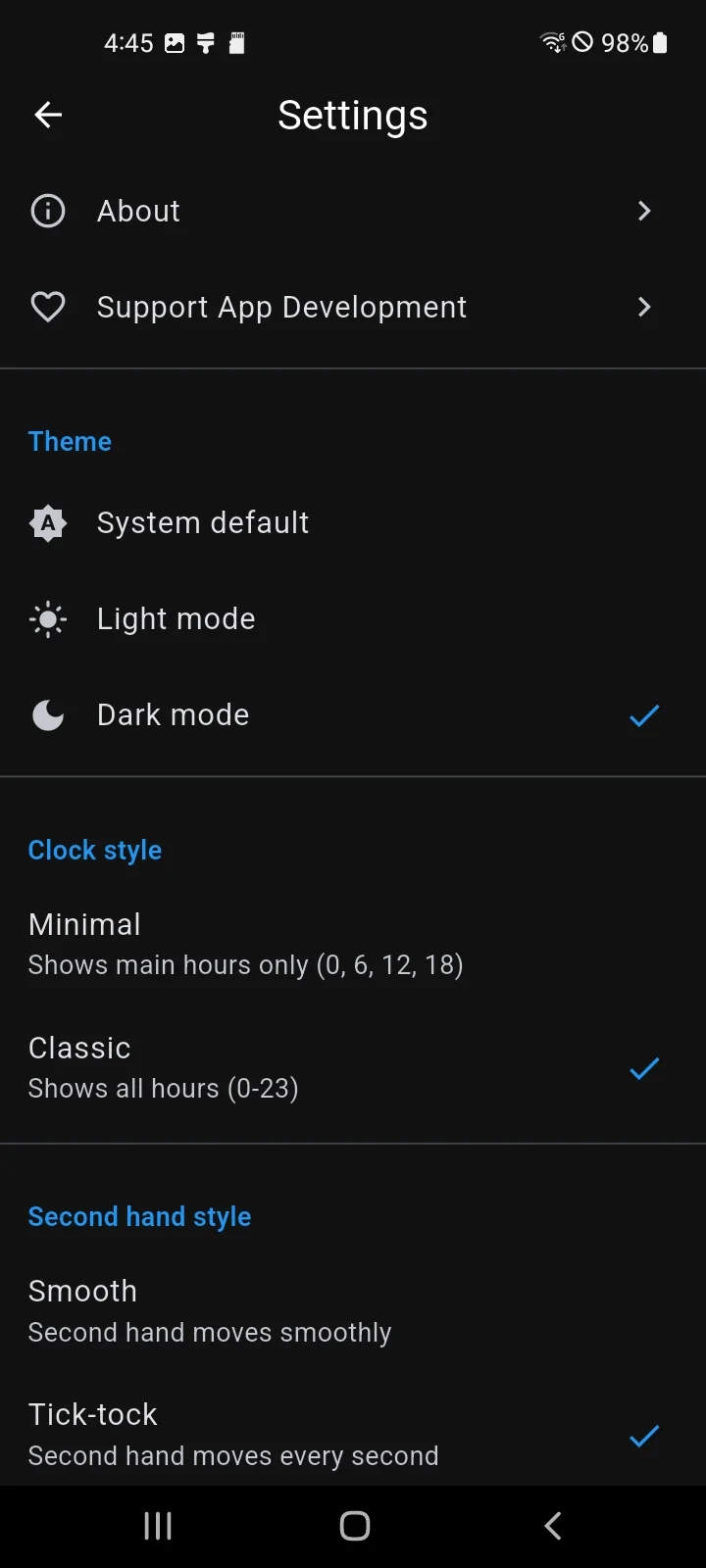
Settings

Theme

Clock Style

Second Hand Style

Language

Display (Mobile)

Windows

Schedule Management

Cloud Sync

Sign in with Google to backup your data to the cloud.

Basic Features

Sync Methods

Conflict Resolution

Reset Cloud Data

Restore from Backup File

Tips

  • Double-tap the clock to enter full-screen mode
  • Swipe in full-screen to change clock/second hand styles
  • Rotate your mobile device to landscape for a split-screen layout
  • Overlapping schedules show up to 3 layers, with "+N" badge for 4 or more
  • Selecting a schedule in the "+N" badge highlights the badge for easy identification
  • Schedules that start earlier are displayed on the outer layers first

Support Development

Support the app development and ads will be permanently removed. (Android only)

Privacy Policy

You can view the Twenty Four Hours Privacy Policy.