Railjoin
How to Play
How to Play
| App Name | Railjoin |
|---|---|
| Version | 1.0.0 |
| Developer | Willee Project |
| Platform | Android |
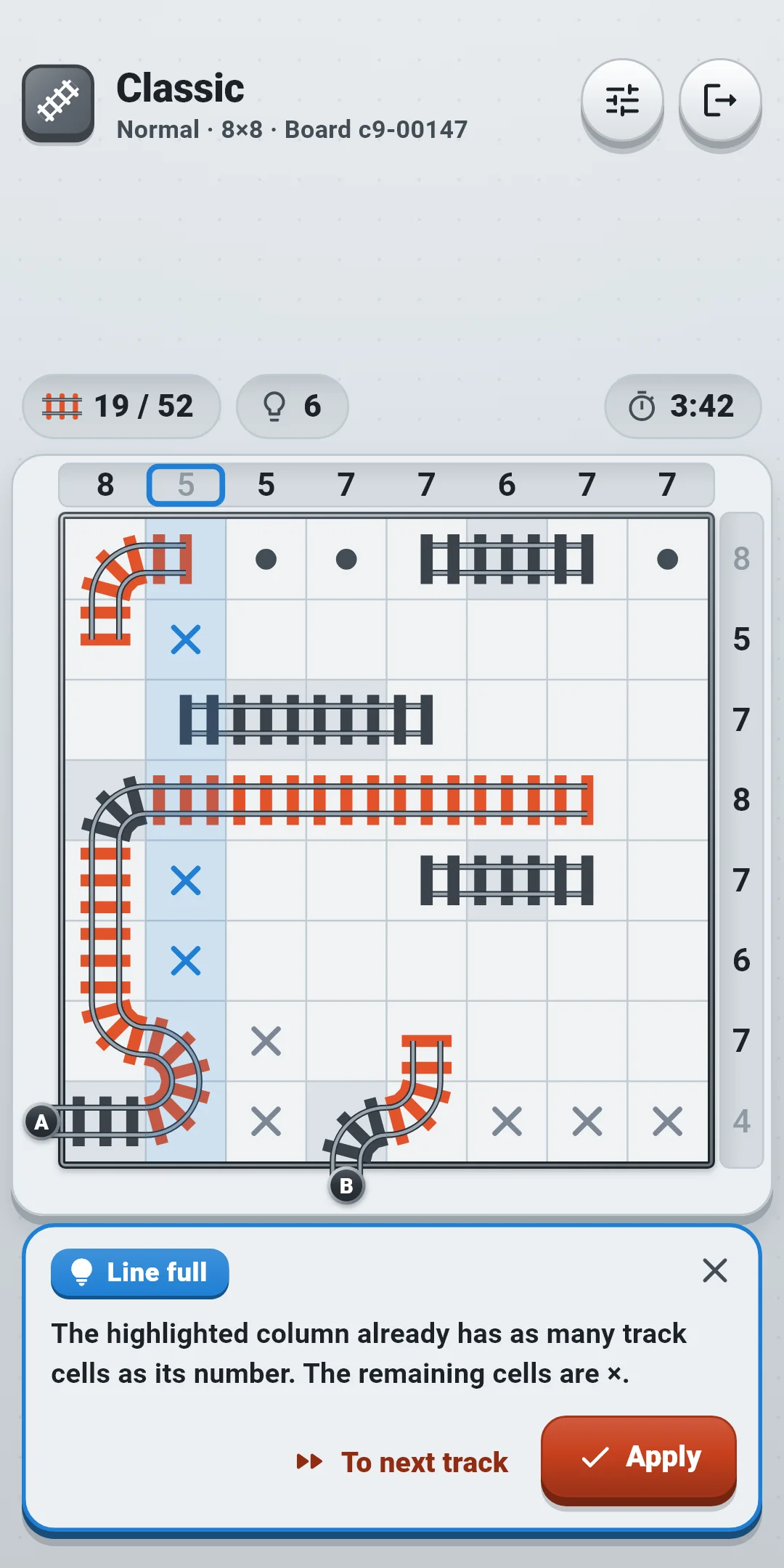
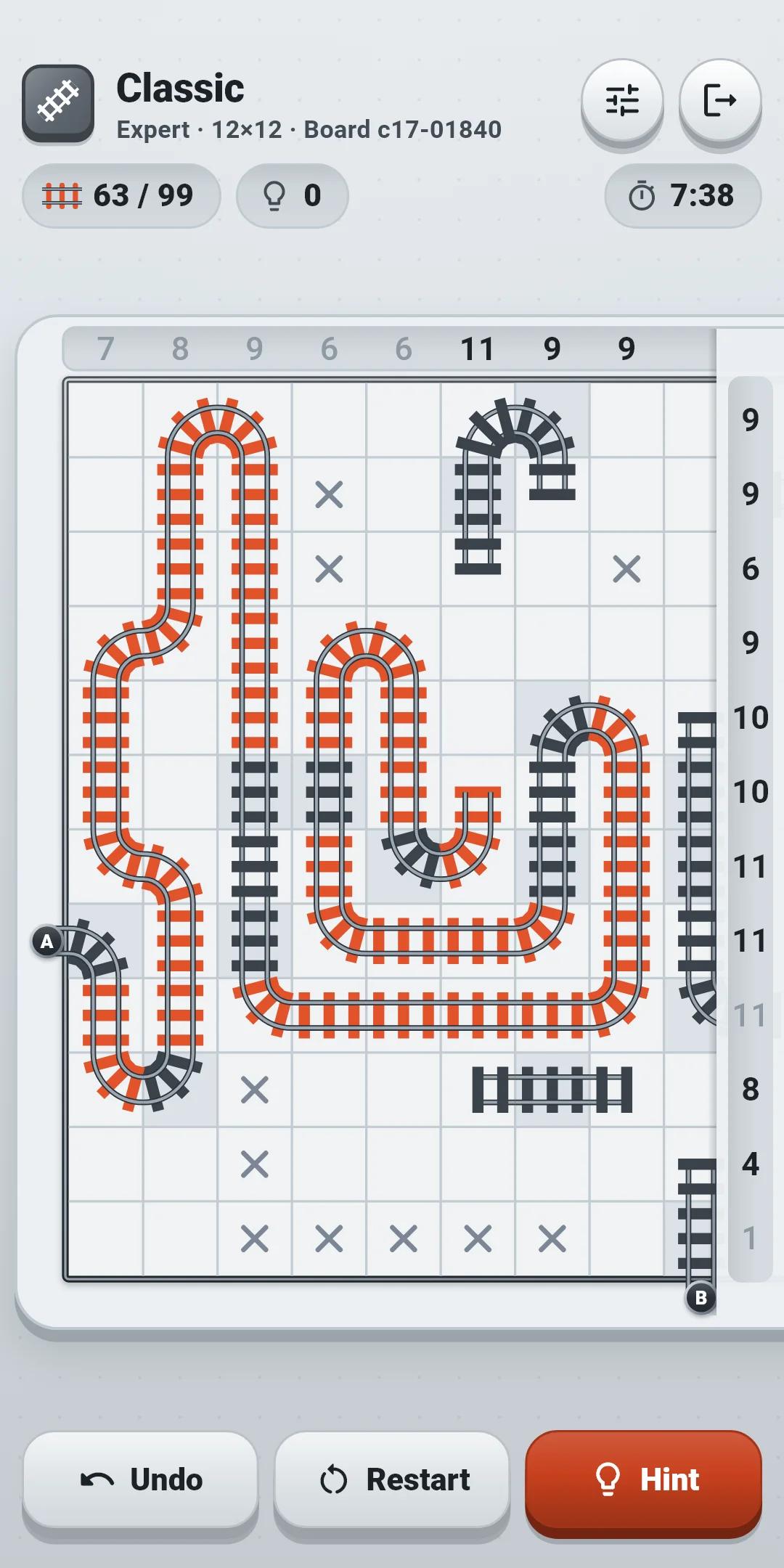
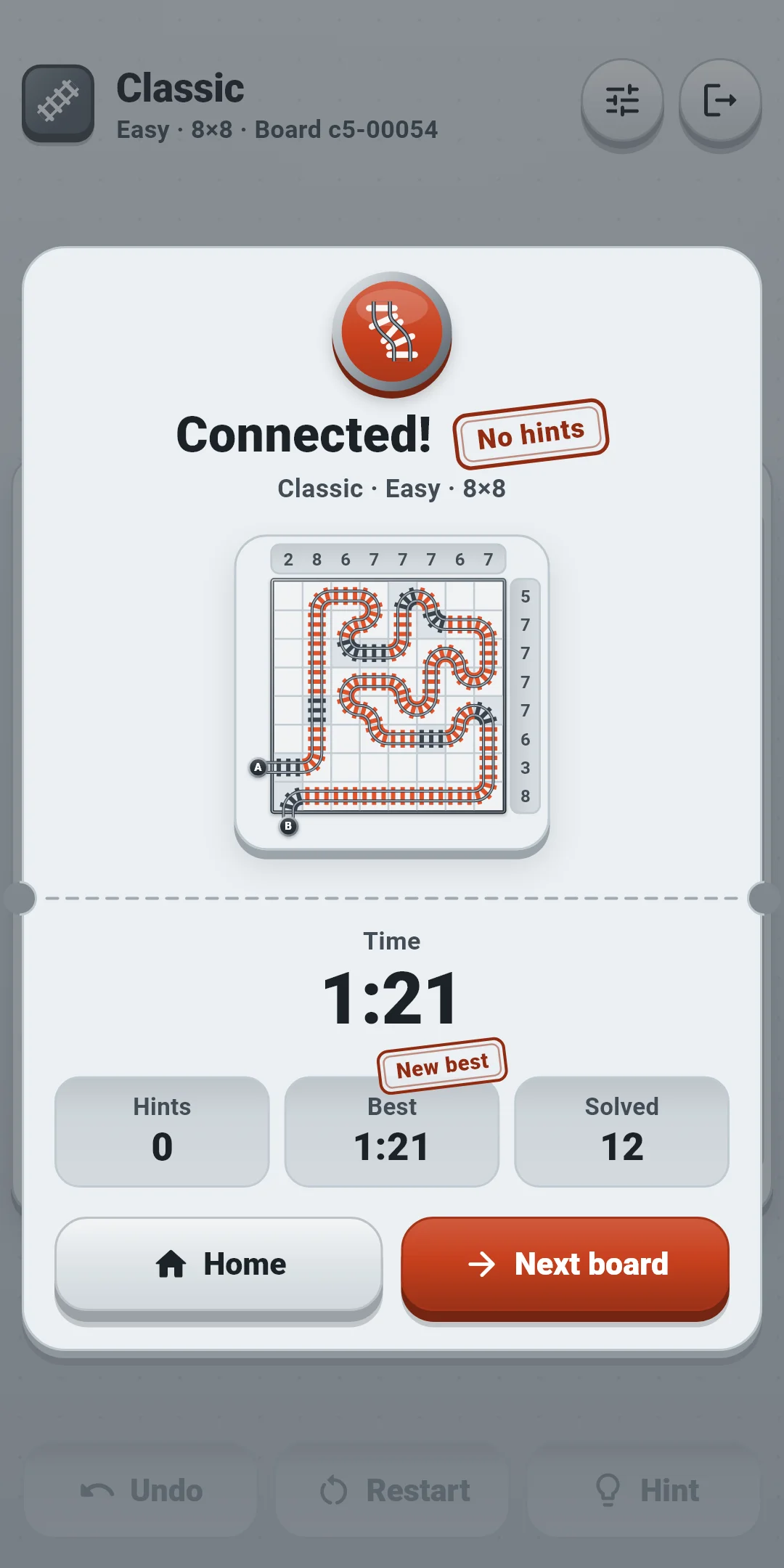
Railjoin is a logic puzzle (a train tracks puzzle) in which you join entrance A to exit B with a single line of track. The numbers above and to the right of the board tell you how many cells of that column or row the track passes through. Every board has exactly one solution and can be solved by logic alone, without guessing.
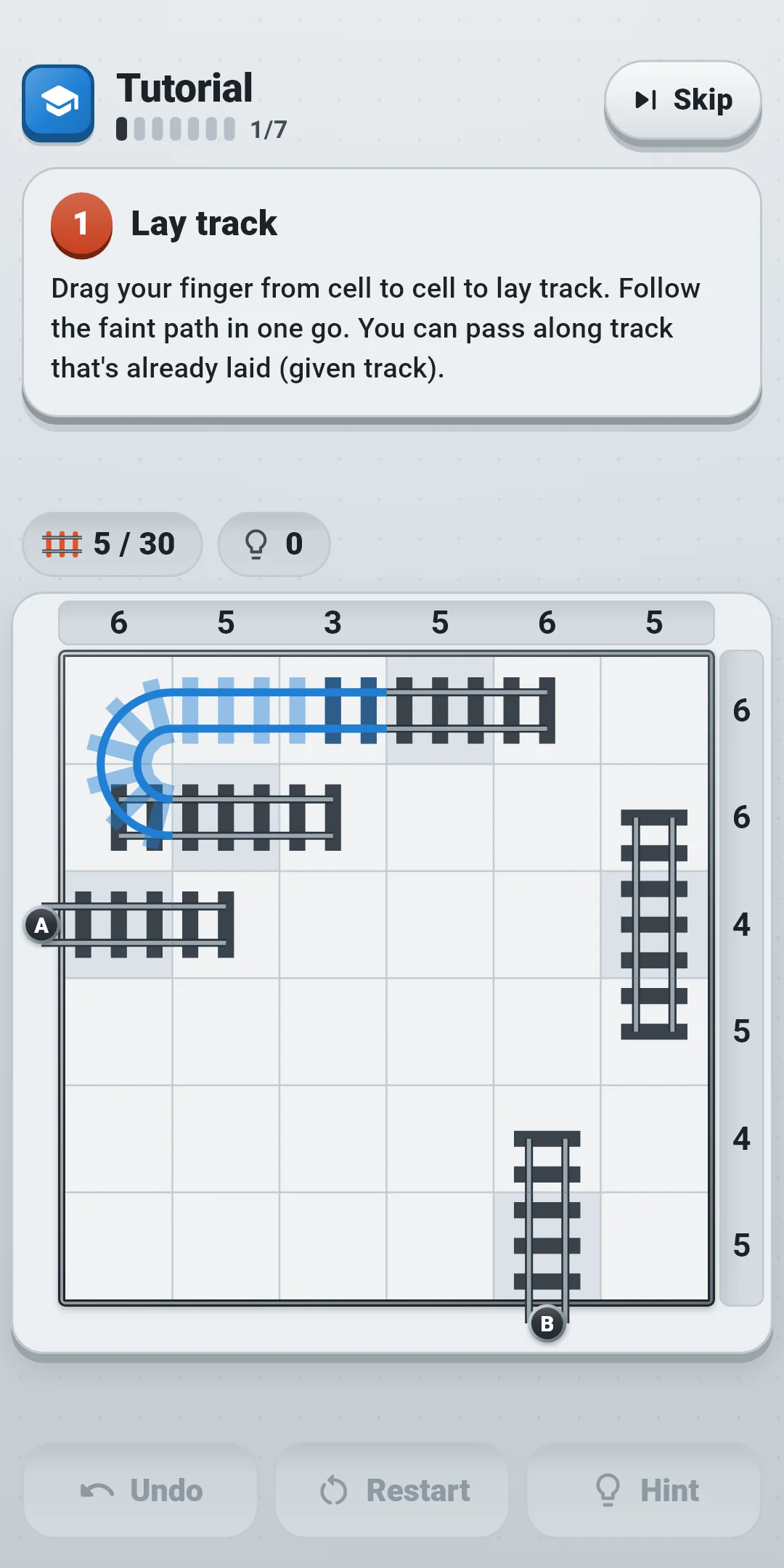
The Tutorial teaches the basics on a single 6×6 board in seven steps: Lay track → Place × → Place ● → Rule conflicts → Undo → Hint → On your own. Each step highlights where to act, and only the highlighted spots respond. The practice board doesn't count in your records, and when you finish, Start playing takes you to the home screen. Hints label the technique they use. From the easiest:
Beginner and Easy boards can be solved with the first four (from Only two ways to Rest is track). Normal boards need up to No loops and No early finish, Hard boards up to Crossing parity, and Expert boards up to Neighbor check. The hint explains any harder technique with its reason (section 4).
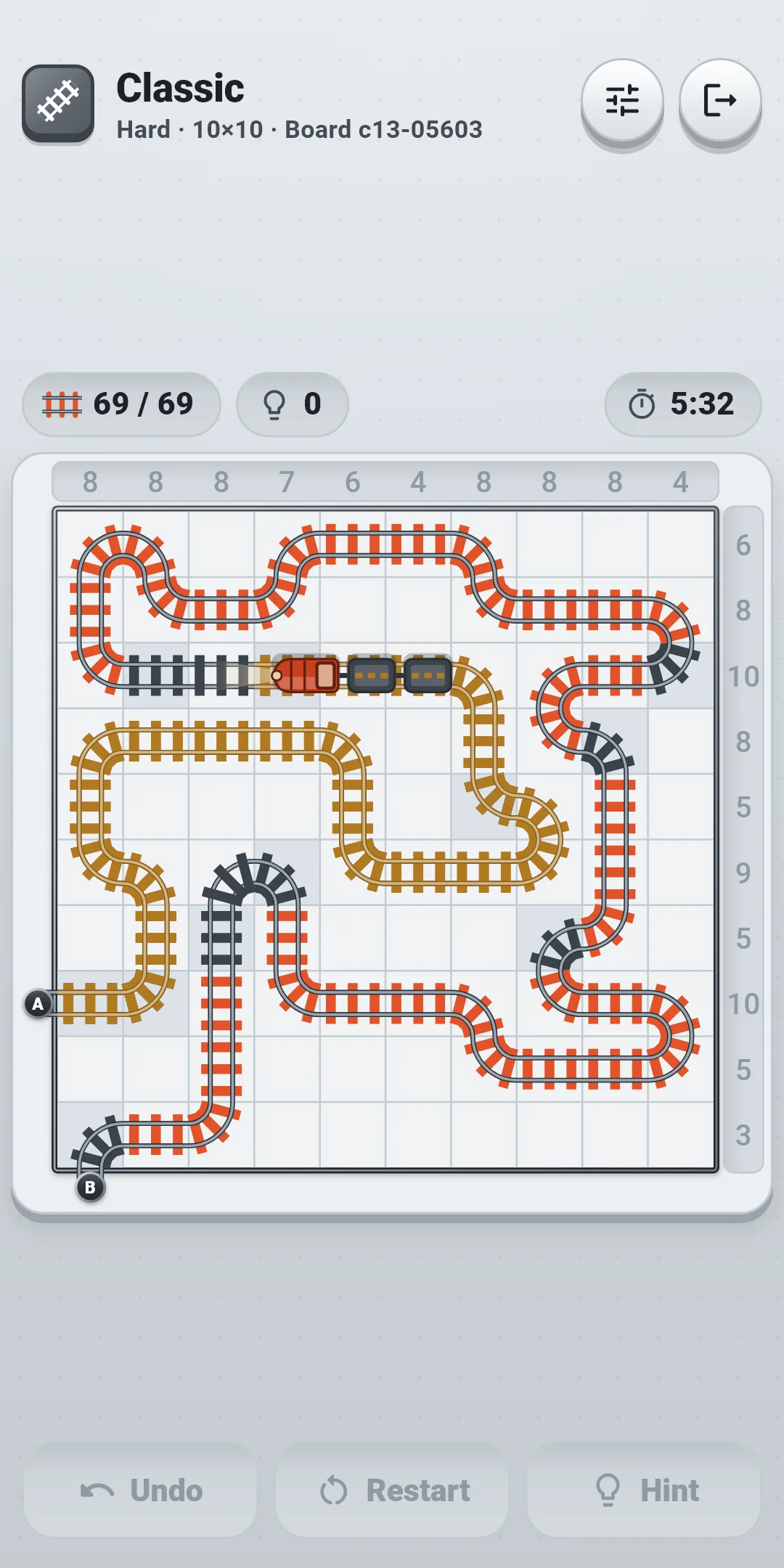
On the left of the top bar are the mode icon and title (Classic, Daily #12), with the level, board size and board number in small text below (for Daily: the board kind, board size and board number). On the right are the Quick settings button and, at the far end, the door-shaped Exit button. The row of small boxes just above the board shows, from the left, the track cell count (cells joined on both sides / track cells in the answer) and the hints used, with the time at the right end (hide it with Show timer in Settings).
| Button | What it does |
|---|---|
| Quick settings | Opens a sheet to change effects and assistance (sections 5 and 8) right in the game. Drag it down or tap outside it to close it |
| Exit (door) | Goes back to the home screen. The board you're solving is saved automatically |
The toolbar below the board:
| Button | What it does |
|---|---|
| Undo | Takes back your last action. It's grayed out when there is nothing to undo |
| Restart | Opens a sheet to choose Restart this board or New board (below) |
| Hint | Shows the next move and why (section 4). Once you've used hints, the number is added, like Hint 3 |
The Restart sheet:
| Option | What it does |
|---|---|
| Restart this board | Clears all the track you laid and your × and ●, and empties the undo history. In Classic the time and hints start over too; in Daily the time and hints you used that day keep counting. It's grayed out on an untouched board |
| New board (Classic) | Drops this board and gives you another board of the same level. A dropped board doesn't count as solved. Not available in Daily |
Hint shows the next step of the solution together with its reason. Hints are free and unlimited. The bubble appears where the toolbar is and hides it for a while. If the bubble would cover the cells, lines or numbers the hint points at, it moves to the top of the board and the toolbar comes back.
You press the buttons in turn: Hint → Show more → Apply.
Turn these on or off under Assistance in Settings. During a game you can change them right away in Quick settings.
The Tutorial board ignores these settings: it always shows rule conflicts and never marks mistakes instantly.
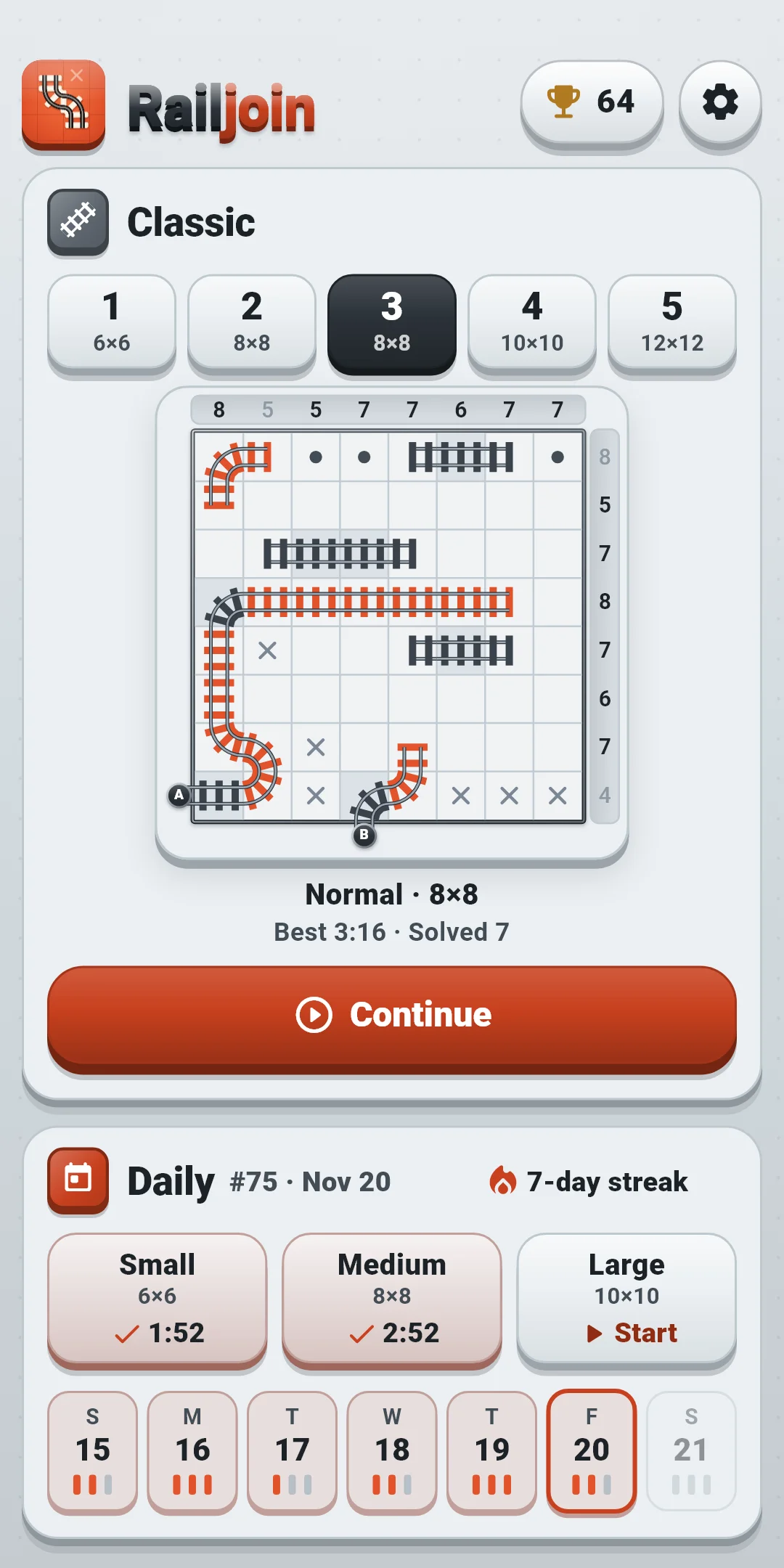
At the top are the app icon and name, a Records button with a trophy and your number of boards solved, and a gear Settings button. Below them are the Classic card and the Daily card, in that order. To play the Tutorial again, use Replay the tutorial under Assistance in Settings (section 8).
| Level | Board size | Hardest technique needed |
|---|---|---|
| Beginner | 6×6 | The first four (Only two ways to Rest is track) |
| Easy | 8×8 | The first four |
| Normal | 8×8 | No loops, No early finish |
| Hard | 10×10 | Crossing parity |
| Expert | 12×12 | Neighbor check |
Railjoin Daily #12 · Medium ✅ 3:41
0 hints
🔥 5-day streak
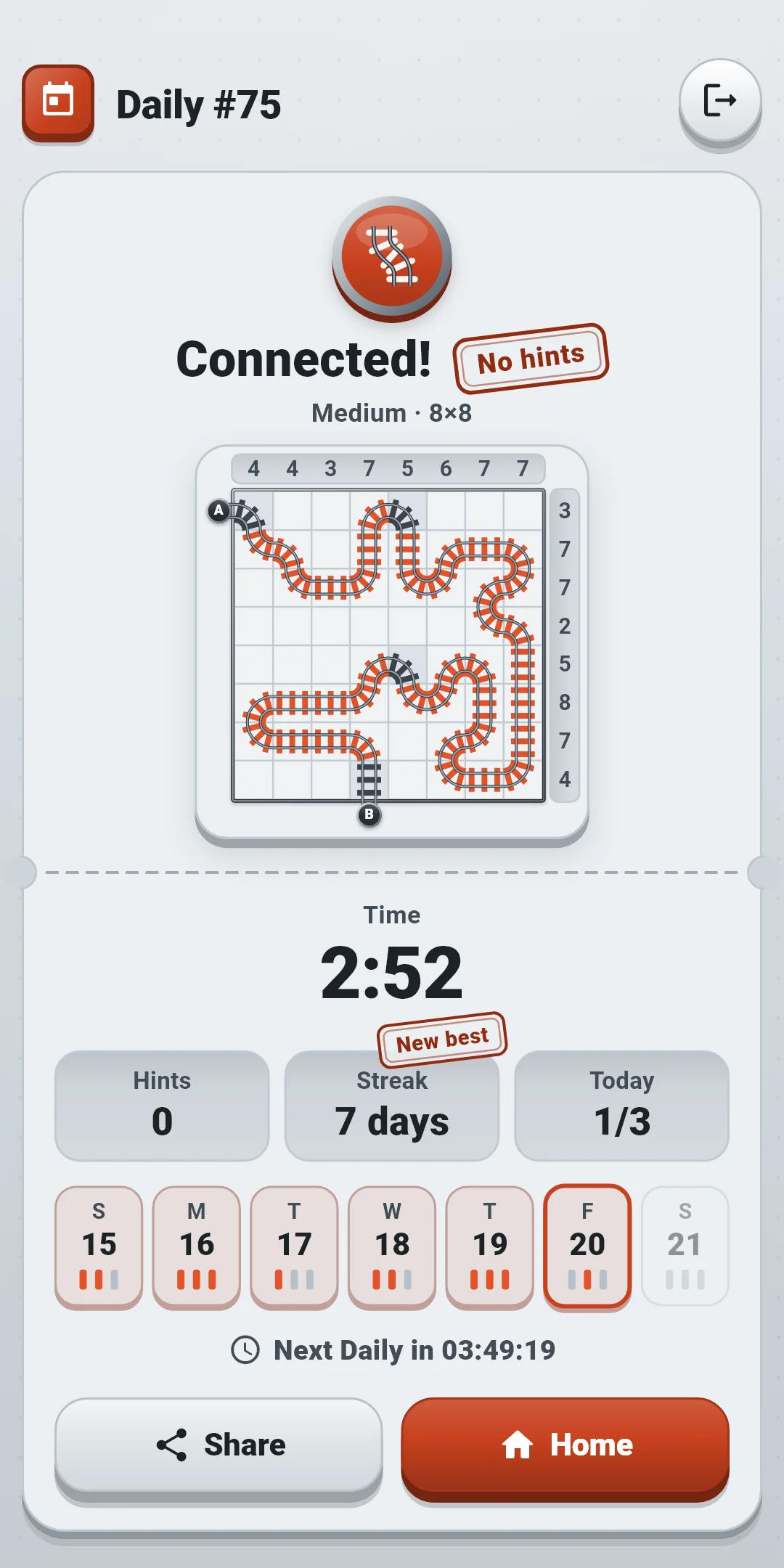
#12 is the Daily number, followed by the board kind and the time (minutes:seconds, or hours:minutes:seconds after an hour). "Railjoin Daily" on the first line is the same in every language. The second line is the hint count and the third line is your streak (only from two days on). The board itself isn't included, because it would give away the answer. The first Daily is #1 and the number goes up by one each day, so the same number and board kind mean the same board.
Open them with the trophy Records button at the top right of the home screen (it also shows your number of boards solved).
Open Settings with the Settings gear at the top right of the home screen. There are three groups. During a game, the Quick settings button changes the first two groups right away.
| Item | What it does |
|---|---|
| Sound effects | Turns sounds on or off: laying and erasing track, separate pieces joining, placing and clearing × and ●, completing a line's number, rule conflicts, hints, undo, finishing a board, the running train, the result and buttons |
| Vibration | A short buzz when you lay track, a lighter one when you erase it or place × and ●, two taps when a line's number is complete, two short heavy taps for a rule conflict and a long buzz when you finish a board. Buttons give a light tap too. Turn it on or off |
| Reduce effects | Tones down all effects at once. While it's on, Glow when joining, Train on completion and Ticket confetti below act as if they were off (their switches are grayed out and keep their value), and press to zoom grows at once without movement |
| Glow when joining | Cells light up briefly and sparks fly at the joint as you lay track. This also covers the light when pieces join, when a line fills up and when you finish a board. On by default |
| Train on completion | When you finish, a train runs from A to B before the result. Turn it off and the result appears right away. On by default |
| Ticket confetti | Ticket scraps burst three times over the result screen. On by default |
Nothing ever shakes the whole board.
| Item | What it does |
|---|---|
| Show rule conflicts | Shows rows or columns over their number, branches and closed loops. On by default |
| Show mistakes instantly | Marks track, × and ● that don't match the answer right away. Off by default |
| Show timer | Shows the time in the row just above the board. On by default |
| Replay the tutorial | Plays the Tutorial again. The practice board doesn't count in your records, and finishing or skipping returns you to Settings. Not available in Quick settings |
| Item | What it does |
|---|---|
| Language | Follow Device language (default) or pick one from the list (English · 日本語 · 한국어 · 简体中文 · 繁體中文) |
| Privacy options | Reopens the ad consent form. Only shown in regions that require consent (such as Europe) |
| About | Version, this guide (How to play), Privacy policy and Open-source licenses |
The screen colors follow your device's dark mode setting. There is no switch inside the app.