
TapAlot is a tally counter for anything you count one at a time. Tap the big button and the number goes up by one the moment your finger touches it. Keep a separate counter for each thing you track, and see every count in History.
Screenshots
Key Features
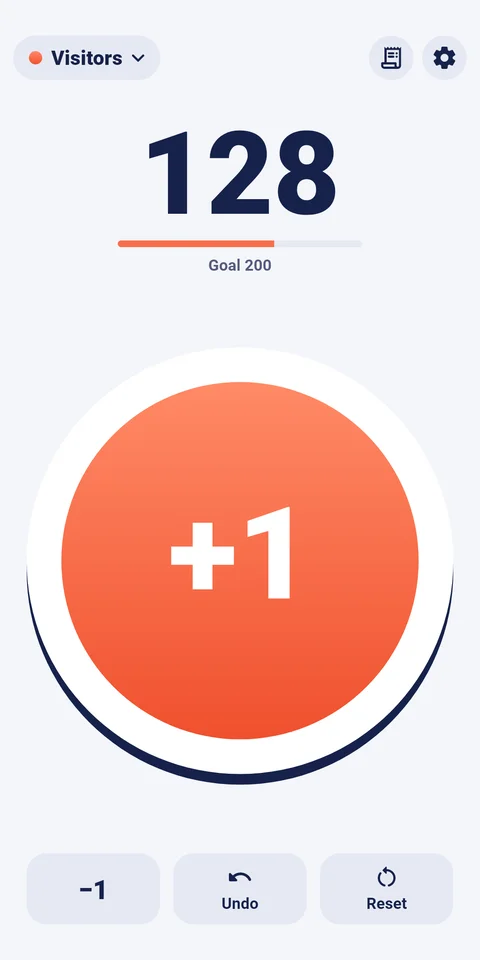
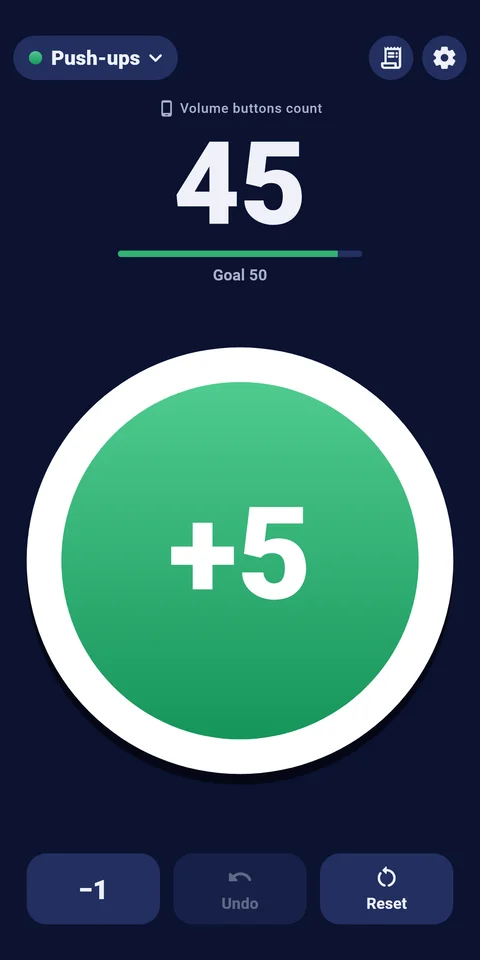
- One big button The big +1 button counts as soon as a finger lands on it, and the number gives a small bounce. Under it are Subtract 1, Undo, and Reset. Reset asks first, the old count stays in History, and Undo brings it back. Add per tap sets how much one tap adds, from 1 to 9999, for each counter.
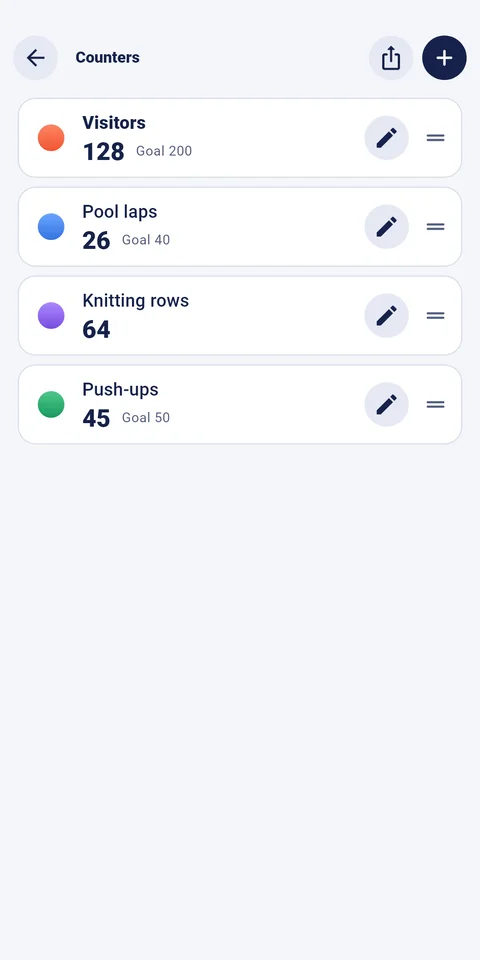
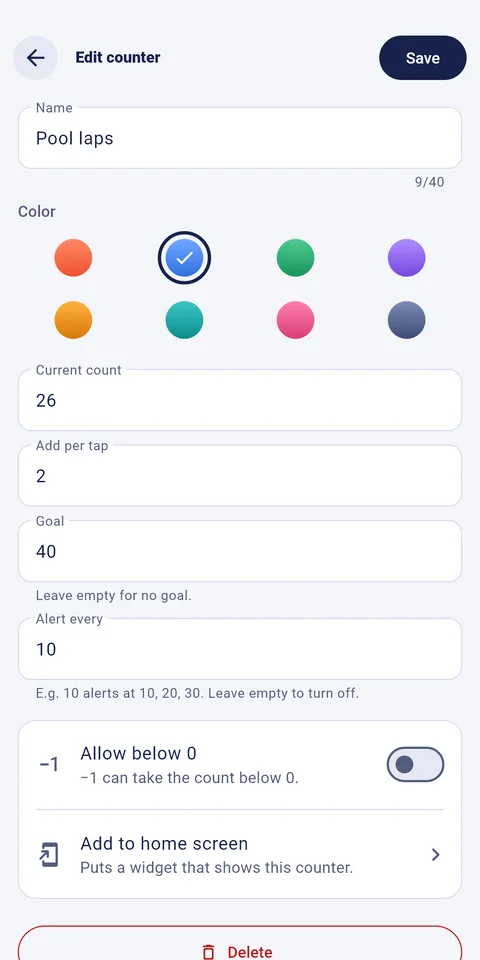
- Many counters Make as many counters as you need. Each one has a name, a color (8 to pick from), Start at, Add per tap, and an optional Goal. Turn on Alert every and a sound and vibration come each time the count passes a multiple of your number; 10 alerts at 10, 20, 30. Allow below 0 is off by default and lets Subtract 1 take a count under zero. Tap the counter name at the top to open the list, and drag to change the order. The app opens on the counter you used last. A deleted counter waits in Recently deleted for 7 days, and Restore brings it back.
- Goals Give a counter a Goal and a progress bar appears under the number. Reaching it shows Goal reached, with its own sound and vibration.
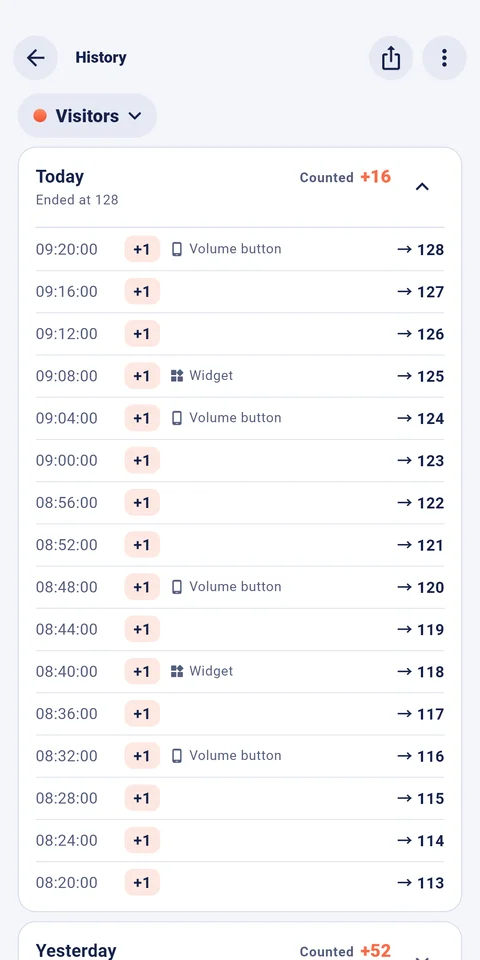
- Saved as you tap Each tap is written to storage straight away; there is nothing to save by hand. History groups a counter's records by day: the day's total, the count it ended on, and how many times it was reset. Open a day to see every tap with its time. Older records are folded into daily totals instead of being deleted, and Clear history empties one counter's records. When Android's automatic backup is on for your device, your counters and history can be included in it, and the app also keeps a daily safety copy on the device.
- Export In History, Export (CSV) sends that counter's records through the share sheet or saves them as a file on your device. In the Counters list, Export all (CSV) does the same for every counter. The columns are counter, date, time, change, amount, count, and source.
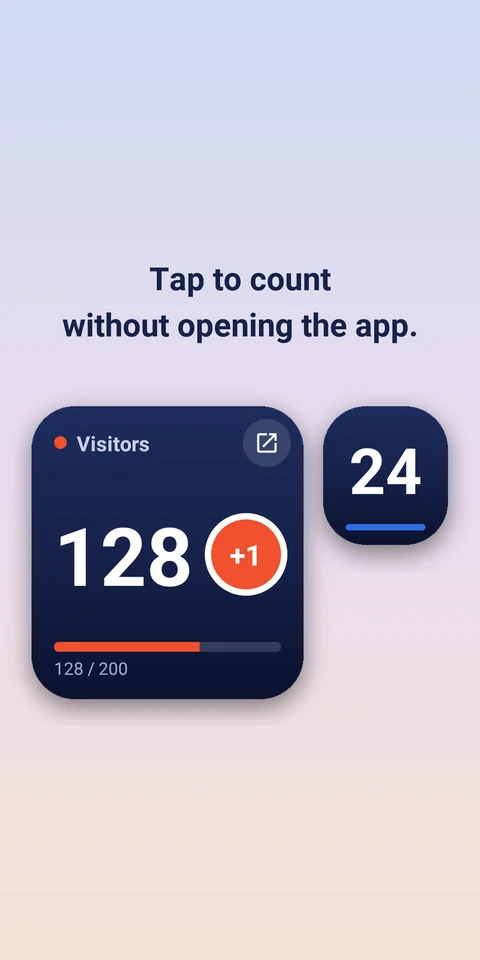
- Home screen widget Count without opening the app. Tap anywhere on the widget except its Open app icon and it adds your Add per tap number. Shrink it down to 1x1, or give it room to show the counter name, the count, and goal progress. A new widget shows the counter you used last; to put a different counter on your home screen, open Edit counter and tap Add to home screen. A widget tap gives a short vibration when Vibration is on, makes no sound, and shows up in History as Widget.
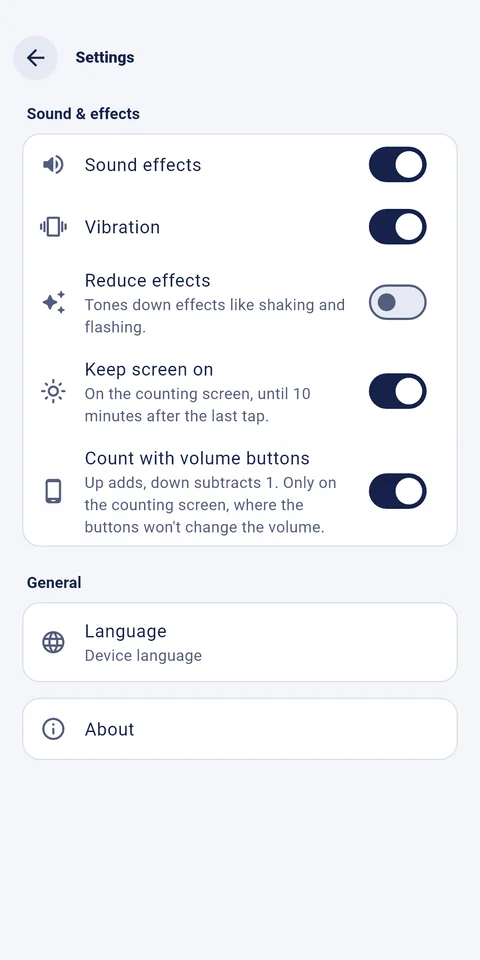
- Volume buttons and screen In settings, turn on Count with volume buttons: volume up adds, volume down subtracts 1. They count only while the counting screen is showing; everywhere else they change the volume as usual. Keep screen on holds the screen awake on the counting screen until 10 minutes after your last tap.
- Look and feel A round wooden tap for each count, a marimba run when you reach a goal, and short vibrations. The Sound & effects group in settings holds separate switches for Sound effects and Vibration, and Reduce effects keeps the number from bouncing. If your device is in dark mode, the screen turns dark too.
- Simple terms Nothing to subscribe to, nothing locked behind a payment, and no purchases inside the app: every feature, the widget included, is open to everyone. Advertising is limited to a banner along the bottom edge, kept well away from the big button, and full-screen ads never appear. TapAlot works offline with no account, and your counters and history stay on your device. Screens are shown in English, Korean, Japanese, or Chinese (Simplified or Traditional), chosen under Language in settings.
Supported Platforms
User Manual
Check out the user manual for the TapAlot app.
Privacy Policy
Check out the privacy policy for the TapAlot app.
Contact
For app-related inquiries, please contact us below.
Email: hanworld@willee.net
Developer: Willee Project